Suppliers
Company, tax, contact and payment terms.

Guide
Five things can be imported from the files you already have. Every import previews and validates before it writes anything.
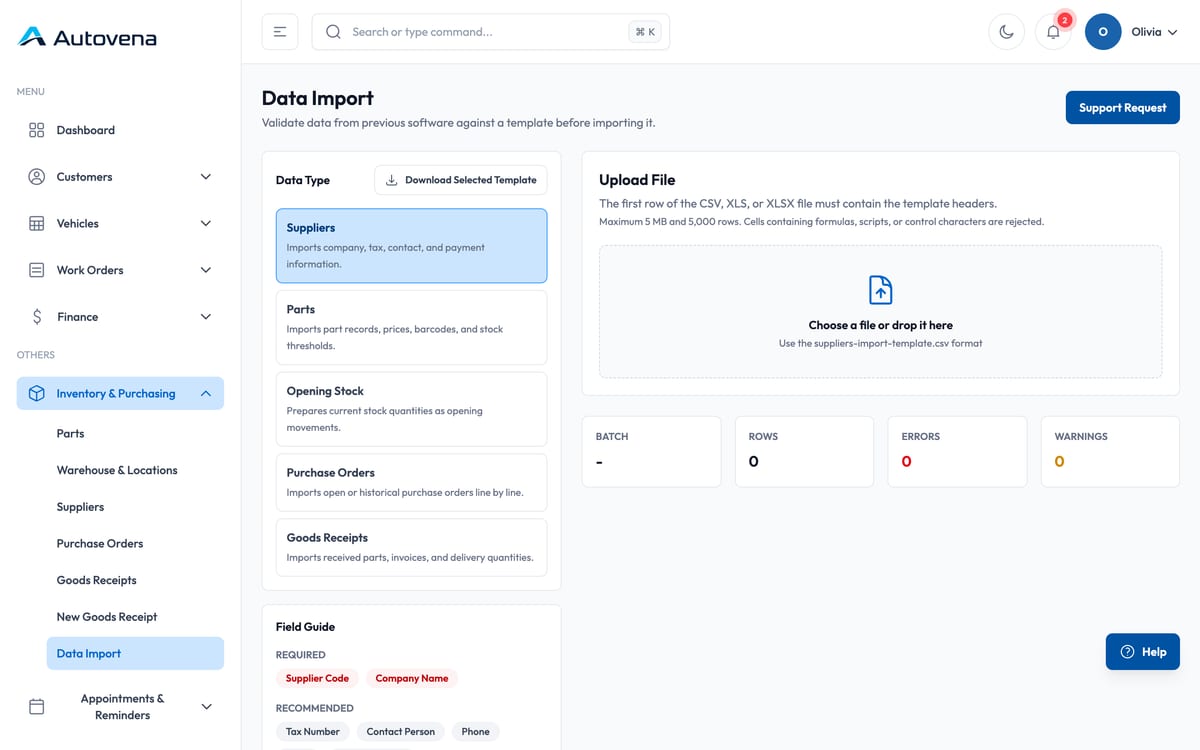
Company, tax, contact and payment terms.
Part records, prices, barcodes and stock thresholds.
Current quantities, written as opening movements.
Open or historical orders, and received quantities.
Pick the data type you are importing.
Take the template and fill it in.
CSV, XLS or XLSX, up to 5 MB and 5,000 rows.
Check the mapping and the validation errors.
Only after the preview is clean.
Save the import report.
Imports do not currently support a one-click rollback. That is why the preview and validation step is mandatory rather than optional.
Open an account in a minute, add your first vehicle, and see how it fits your shop. No card, no call, no commitment.
Mobile app
Scan registrations, VINs and barcodes with the camera, and securely access your shop from anywhere.
Scan with your phone camera or open the App Store.

 Scan with camera