VIN scanning
Scan the VIN, let the vehicle record fill itself
Adding a vehicle is something a service advisor does several times a day, and it costs a couple of minutes every time. Scanning the VIN turns that into a few seconds — and removes the one field nobody wants to mistype.
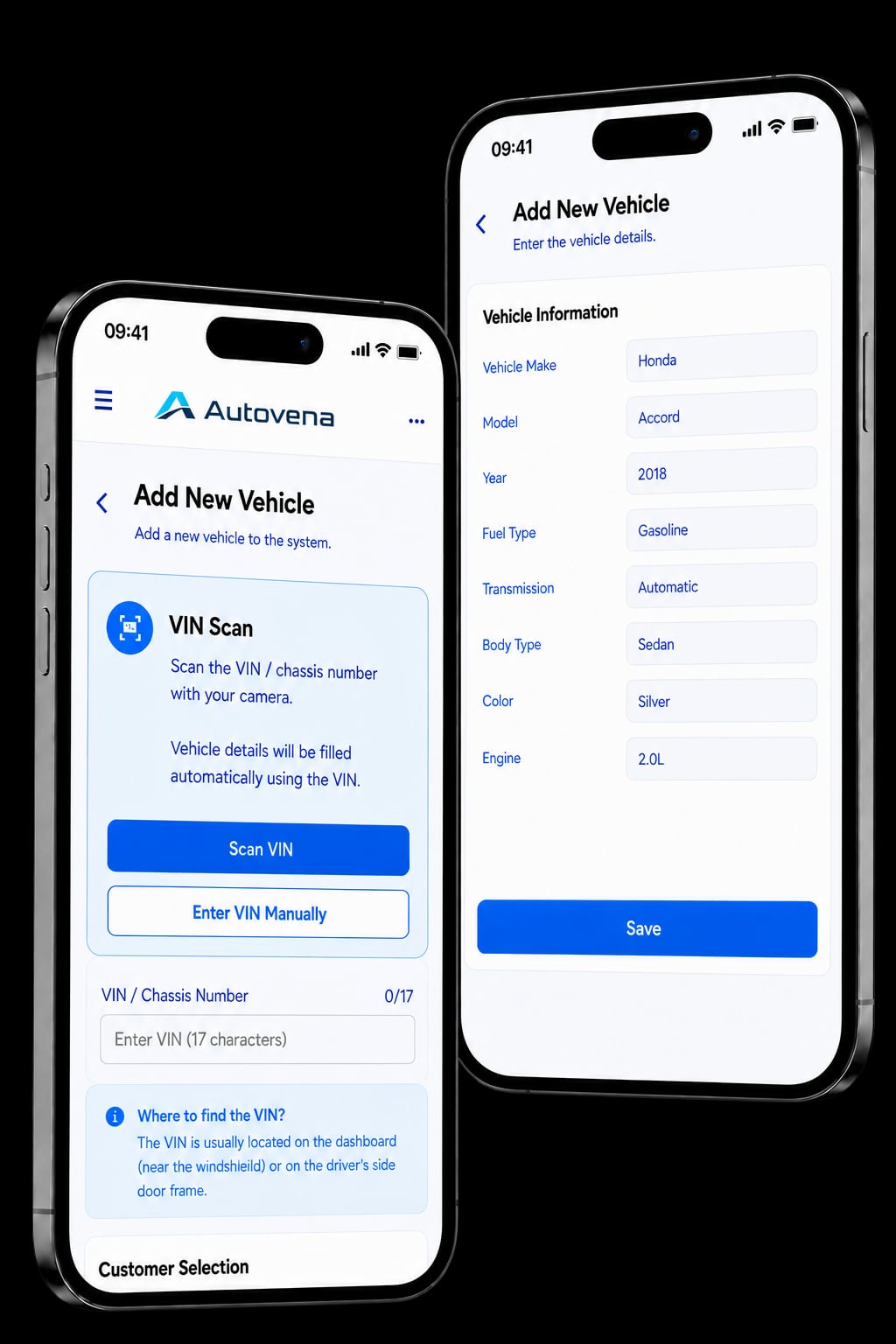
Two ways to enter a VIN
The add-vehicle screen gives you both, side by side. Use whichever suits the moment.
- Scan VIN — point the camera at the number and let it read the 17 characters
- Enter VIN Manually — type it in if the plate is dirty, badly lit or awkward to reach
- Either way the lookup starts as soon as all 17 characters are in
How it works
-
Find it
The VIN is usually on the dashboard by the windscreen, or in the driver's door frame.
-
Scan it
Open the camera from the add-vehicle screen and hold it over the number.
-
It decodes
The VIN is looked up and the vehicle's details are written into the form.
-
Check it
Every field is on screen before anything is saved, so you can correct or complete it.
-
Save it
The vehicle record is created and attached to the customer.
What gets filled in
A VIN carries the vehicle's build information, so most of the record can be derived from it.
- Make, model and model year
- Fuel type, transmission and body type
- Engine details
- The VIN itself, validated at 17 characters
Plate, colour and mileage are yours to add — those aren't part of the VIN.
Where the limits are
The lookup relies on international VIN databases, and coverage varies by vehicle. Make, model and year come back for most cars; on some market-specific variants a few fields will be empty. Nothing is invented to fill a gap — an empty field stays empty and you complete it yourself. That is also why the form is shown to you before it saves.
Vehicles registered outside the databases we query can still be added by hand; scanning is a shortcut, never the only route.
Frequently asked questions
What if the camera can't read the VIN?
Type it instead. The manual entry field sits directly under the scan button and starts the same lookup once you have entered all 17 characters.
Does the lookup work for every vehicle?
Coverage varies. Make, model and year come back for most vehicles; some market-specific variants return only part of the record. Anything missing is left blank rather than guessed, and you fill it in.
Can I correct what the lookup returns?
Yes. Every field is editable on screen before you save, and nothing is written to the vehicle record without you confirming it.
Do I need the mobile app to scan?
Camera scanning uses the phone's hardware, so it runs in the mobile app. Typing a VIN and having it decoded works anywhere Autovena does, including the browser.
Start with your next job.
Open an account in a minute, add your first vehicle, and see how it fits your shop. No card, no call, no commitment.